How to Download & Use IP Webcam Pro App: Step-by-Step Guide
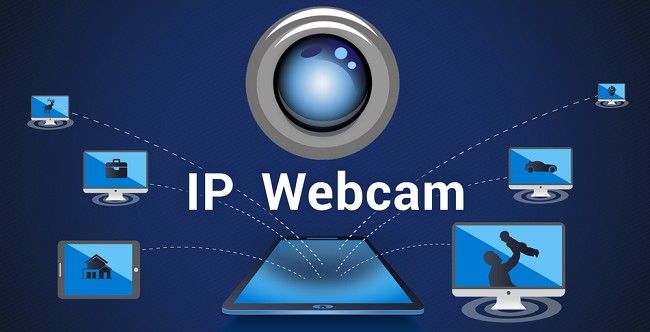
The IP Webcam Pro app is a powerful tool for turning your smartphone into a wireless security camera, a baby monitor, or even a webcam for your PC. Whether you're looking to enhance home security, monitor your pets, or use your phone as a video conferencing tool, this app is versatile and reliable. In this guide, we’ll walk you through how to download and use the IP Webcam Pro app effectively.
What is IP Webcam Pro?
IP Webcam Pro is an advanced version of the IP Webcam app, which transforms your smartphone into an IP-based camera. The "Pro" variant offers enhanced features such as no ads, higher-quality streaming, and additional customization options. It works seamlessly with various devices and platforms, making it a popular choice among users who value convenience and flexibility.
Key Features of IP Webcam Pro
Before diving into how to download and use the app, here’s a quick look at its standout features:
Live Video Streaming: Stream video footage over a local network or the internet.
Multiple Viewing Options: Compatible with VLC, web browsers, and third-party apps.
Recording Options: Record videos directly on your phone or upload them to cloud services like Dropbox or Google Drive.
Motion Detection: Alerts you when motion is detected in the camera’s field of view.
Audio Support: Stream and record audio alongside video.
Customizable Interface: Adjust resolution, bitrate, and frame rate to suit your needs.
Integration with Other Devices: Compatible with software like Skype, Zoom, and OBS Studio.
Password Protection: Secure your streams with a password to ensure privacy.
Step-by-Step Guide to Download IP Webcam Pro
Step 1: Check Device Compatibility
IP Webcam Pro is available for Android devices. Ensure your device meets the following requirements:
Android version 5.0 or higher
Sufficient storage space
A stable internet connection
Step 2: Visit the Google Play Store
Open the Google Play Store app on your Android device.
Search for "IP Webcam Pro" in the search bar.
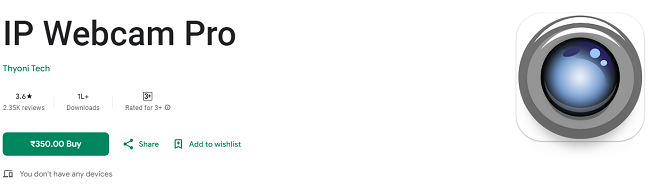
Step 3: Purchase and Download the App
Click on the app from the search results.
Tap the price button to purchase the app. (The Pro version is a paid app.)
After completing the payment, the download will begin automatically.
Step 4: Install the App
Once the download is complete, the app will be installed on your device. You can access it from your app drawer or home screen.
How to Use IP Webcam Pro on Your Device?
Step 1: Launch the App
Open the app on your Android device. The main interface will display various settings and options for configuring your IP camera.
Step 2: Configure Settings
Video Preferences:
Set the video resolution and quality.
Adjust frame rates for smoother streaming.
Audio Settings:
Enable audio streaming if needed.
Adjust microphone sensitivity for clear audio capture.
Authentication:
Set a username and password for added security.
Step 3: Start the Camera
Once you’ve configured the settings, tap the “Start Server” button. The app will display an IP address (e.g., http://192.168.1.100:8080).
Step 4: View the Stream on Other Devices
Using a Web Browser:
Enter the IP address displayed in the app into the browser's address bar on your PC or another device.
You'll be able to view the live stream and access controls like zoom, focus, and recording.
Using VLC Media Player:
Open VLC on your PC.
Go to Media > Open Network Stream and enter the IP address.
Step 5: Record and Save Videos
Enable recording from the app’s interface or a connected device.
Choose where to save the recordings—on your phone, PC, or a cloud service.
Advanced Features of IP Webcam Pro
1. Motion Detection
Go to the app’s settings and enable motion detection.
Set sensitivity levels to avoid false alerts.
Configure notifications to receive alerts via email or push notifications.
2. Cloud Upload
Link your cloud storage account to the app.
Automatically upload videos and snapshots for remote access.
3. Use as a Webcam for PC
Install webcam drivers from the IP Webcam app’s official website.
Connect your phone and PC over the same network.
Use the phone camera for video calls and streaming.
4. Night Vision Support
Activate night mode for better visibility in low-light conditions.
Pair with an infrared light source for enhanced nighttime recording.
Tips for Optimizing Your IP Webcam Pro Experience
Use a Stable Network: A reliable Wi-Fi connection ensures smooth streaming.
Position Your Camera Properly: Place the phone in a secure location with a good view of the area you want to monitor.
Keep the Phone Charged: Use a charging cable or power bank to keep the device running for long periods.
Test Settings: Experiment with resolution and bitrate to balance quality and bandwidth usage.
Common Issues and Troubleshooting
Problem 1: Can't Connect to the IP Address
Ensure the phone and the viewing device are on the same network.
Double-check the IP address and port number.
Problem 2: Lagging or Buffering
Lower the video resolution or bitrate.
Use a faster Wi-Fi connection or a wired Ethernet adapter for the phone.
Problem 3: No Audio in the Stream
Ensure audio streaming is enabled in the app’s settings.
Check microphone permissions for the app.
Why Choose IP Webcam Pro?
Compared to free alternatives, IP Webcam Pro offers superior performance and a broader range of features. Its ad-free experience and advanced capabilities make it a worthwhile investment for users who need reliable surveillance or high-quality webcam functionality.
Conclusion
The IP Webcam Pro app is a versatile tool that transforms your smartphone into a powerful, feature-rich IP camera. Whether you need it for home security, video conferencing, or creative projects, this app provides an easy-to-use and cost-effective solution. By following the steps outlined in this guide, you can download, configure, and use IP Webcam Pro to suit your needs.
Get started today and make the most of your device’s potential with IP Webcam Pro!